
If your ProLific USB to Serial connection is giving you trouble and you’re looking for a way to fix it, you’ve come to the right place. In this piece, we’ll explain in detail the most common problems users run into and give you step-by-step instructions on how to fix them. We can help you whether you’re a tech pro or just starting out. So let’s get started with setting up your ProLific USB to Serial interface.

What is ProLific USB to Serial Adapter?
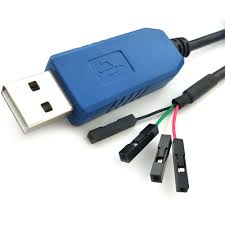
The ProLific USB to Serial adapter is a popular way to connect serial devices to a computer through a USB port. These devices include modems, printers, and GPS units. It makes it easy for people to talk to old equipment that still uses serial links.
Common Issues and Solutions
1. Driver Compatibility
Driver compatibility is one of the most common problems with the ProLific USB to Serial interface. If the drivers are out of date or not suitable, the adapter might not work right. Follow these steps to solve this problem:
- Identify the model of your ProLific USB to Serial adapter.
- Visit the official ProLific website or the manufacturer’s website.
- Download the latest driver for your specific adapter model and Windows version.
- Install the driver and restart your computer.
- Test the adapter to see if it is now working properly.
ALSO READ: Computer Shuts Down When Playing Games On Windows – Solution
2. Incorrect Configuration
Due to wrong configuration choices, the ProLific USB to Serial adapter may not work sometimes. Follow these steps to make sure the setup is right:
- Go to the “Device Manager” on your Windows computer.
- Locate the ProLific USB to Serial adapter under the “Ports (COM & LPT)” section.
- Right-click on the adapter and select “Properties.”
- Navigate to the “Port Settings” tab.
- Verify that the baud rate, data bits, parity, and stop bits are correctly set according to the device you are connecting to.
- Apply the changes and test the adapter’s functionality.

3. USB Port Issues
In some cases, the USB port the adapter is plugged into is the problem, not the adapter itself. Here’s what you can do if your USB port isn’t working:
- Disconnect the ProLific USB to Serial adapter from the current USB port.
- Connect it to a different USB port on your computer.
- Check if the adapter is now recognized and functioning correctly.
- If the issue persists, try using a different USB cable or a USB hub with external power.
4. Conflicting Software
The ProLific USB to Serial adapter can also break if it doesn’t get along with other apps on your computer. To fix this, do these things:
- Close any applications or programs that may be using the adapter.
- Disable or uninstall any third-party software that interacts with serial devices.
- Restart your computer and test the adapter’s functionality again.
We hope that this fix guide for your ProLific USB to Serial adapter on Windows has helped you fix the problems you were having. By doing what this piece tells you to do, you should now be able to get your adapter to work well. Remember that the key is to make sure you have the most up-to-date drivers, the right setup settings, and to deal with any possible software conflicts. If you’re still having trouble, we suggest getting in touch with ProLific’s customer service for more help.