


As technology keeps getting better, operating systems change to include more and better features and functions. The Widgets Picker is an exciting new feature in Windows 11, which is the latest operating system from Microsoft. In this piece, we’ll go into detail about how to turn on this feature, giving you step-by-step instructions and helpful tips to make sure everything goes smoothly.
The Widgets Picker is a creative part of Windows 11 that lets users access a wide range of customizable widgets that provide real-time information, personalized content, and quick shortcuts. These widgets are easy to reach from the Taskbar, so you can stay up-to-date and get the information you need without stopping what you’re doing.
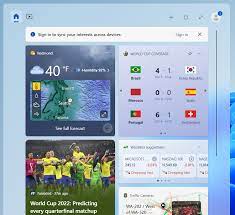
The Importance of the New Widgets Picker in Windows 11
Simplifying Access to Information
The Widgets Picker gives users quick access to relevant data, updates, and personalized content. It acts as a doorway to a lot of different kinds of information. Users can easily get to a wide range of widgets, such as weather reports, news headlines, calendar events, stock market trends, and much more, with just a swipe or click.
Customization for Personalized Experience
With Windows 11, users can customize their Widgets Picker to fit their own tastes and hobbies. With a large number of widgets to choose from, users can build a personalized dashboard of information that meets their needs. This level of customization makes sure that users see material that is meaningful and useful to them in their everyday lives. This saves them time and effort.
ALSO READ: Steps To Enable New Header UI For File Explorer On Windows 11
Enhancing Productivity and Efficiency
In Windows 11, the Widgets Picker is more than just a place to find information quickly. It makes users much more productive and efficient across a wide range of jobs and workflows. Users can stay up-to-date without stopping what they’re doing if they can get to important information quickly. The Widgets Picker makes it easy to look at the weather report before going out, check the latest news during a coffee break or keep an eye on stock prices during a very important business meeting.
Seamlessly Integrated Ecosystem
The Widgets Picker in Windows 11 works well with the rest of the Microsoft environment, making it more useful and useful. Users can have a consistent experience across all of their devices by linking to other Microsoft services like Microsoft Edge, Office 365, and Cortana. This interface makes sure that information flows smoothly and lets users switch between apps and use the Widgets Picker to access relevant data from different sources.
Aesthetically Pleasing and User-Friendly Design
The Widgets Picker in Windows 11 is both visually appealing and easy to use, in addition to being useful. The design is clean, modern, and easy to use, so users can easily move from one widget to another. The widgets are well-thought-out and show information in a way that is easy to understand and doesn’t overwhelm the user. The consistent design language of Windows 11 makes sure that the Widgets Picker fits in well with the rest of the user interface, which improves the overall user experience.
How To Enable the Widgets Picker
To enable the new Widgets Picker on Windows 11, follow these simple steps:
Step 1: Accessing the Settings
- Click on the Start button located on the Taskbar.
- Select the Settings icon from the Start menu to open the Windows Settings.
Step 2: Customizing the Widgets
- Within the Settings window, locate and click on the Personalization option.
- From the left-hand side menu, select Widgets.
- Here, you can explore the available widget options and customize them to suit your preferences.
Step 3: Adding Widgets to the Taskbar
- Right-click on an empty space on the Taskbar.
- From the context menu, hover over the Toolbars option.
- In the submenu, click on Widgets to add the Widgets Picker to your Taskbar.
Step 4: Managing Widgets
- To manage the widgets displayed on the Widgets Picker, click on the Manage Widgets option at the bottom of the Widget Picker.
- From here, you can choose which widgets to display, rearrange their order, or remove unwanted widgets.
ALSO READ: How To Download And Update Pictek Gaming Mouse Driver
Tips for Optimizing Your Widgets Experience
To make the most out of the new Widgets Picker on Windows 11, consider implementing the following tips:
1. Customize Your Widgets
Take advantage of the fact that tools can be changed in different ways. Customize them to show you the information that’s most important to you, like the weather, news stories, events on your calendar, or even the scores of your favourite sports teams.
2. Explore Third-Party Widgets
Explore the many third-party widgets that are available in addition to the tools that come with Windows 11. These can help you be more productive, have more fun, or pursue your own hobbies, making your life even better.
3. Optimize Performance
Even though widgets are very useful, they can also use up system resources. If your computer isn’t running as well as it should, try turning off widgets you don’t use often or reducing the number of widgets that are open at once.
4. Stay Updated
Microsoft is always putting out updates for Windows 11 that make it work better and have more features. Keep your running system up to date to get the latest Widgets Picker improvements and bug fixes.
By following the step-by-step instructions and using the tips, you can turn on the new Widgets Picker in Windows 11, customize your Widgets experience, and stay up to date on the information that means most to you. Use the power of Windows 11 and the Widgets Picker to make your work easier and more efficient.